Table of Contents
Online Help > Placemarks > How to merge tracks?
How to merge tracks?
Tracks are made of parts called track segments. When merging multiple tracks, the application will create a new one that contains a copy of all segments of the merged tracks.
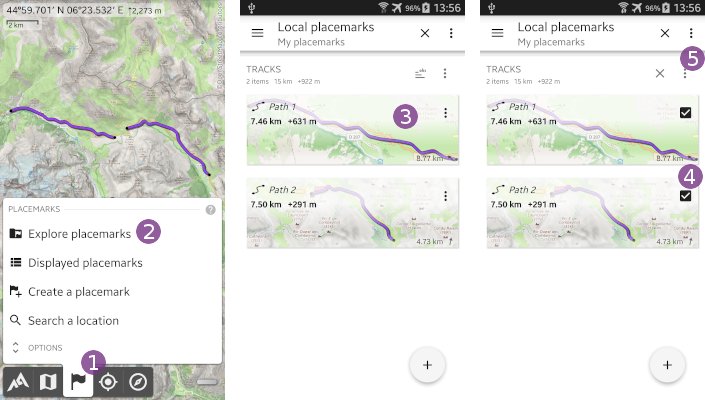
In order to list your tracks, tap on the “Placemarks”  menu icon and on “
Explore placemarks”  . If necessary, browse to the folder where are saved your tracks. To merge tracks:
- Long-press a first track
 to activate the multi-selection mode;
 - Check all tracks you want to merge
 ;
; - Long-press again any of the select track to display the menu, or tap the menu icon
 at the right of the tracks header.
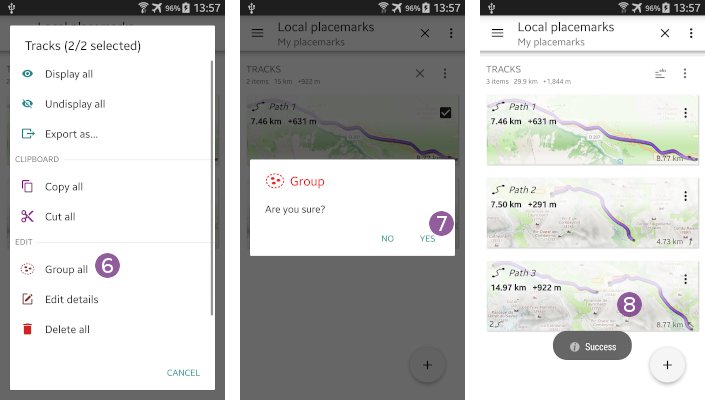
- Choose “
Group all” and tap on “
Yes” to confirm;
 - The new track containing a copy of all merged track segments will be added to the list
 .
.
 Even if all the merged track segments are now part of the same track, they are still displayed independently as different parts. In order to display them as a single part, you can merge them as explained below.
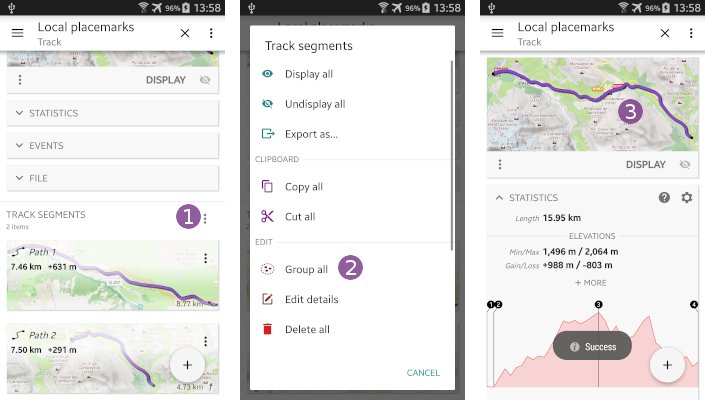
How to merge track segments?
In order to merge segments of a track:
- List your tracks as explained above, and tap on the track you want to merge segments to open its details;
- Scroll down the track details page, until the track segments are displayed;
- Tap on the segments menu icon;
- Choose “
Group all” and tap “Yes” to confirm; - All segments are merged into a single one, and the track is now displayed as a single part on the map.